Blog Post #4: Google Docs/Sheets/Slides Voice Typing
So many people use Google and Google's suite of tools everyday. As a cloud based alternative to Microsoft Office or Apple's iWork suite, it has quickly become a popular way to write, track data, and create presentations. Many college students use this as opposed to other software, since its free and can be accessed from anyway, as long as you have a Google account.
While all of the software features settings and options to increase accessibility for those who need it, one of the most used for accessibility is the voice-to-text feature. This allows the user to click the microphone button, and begin talking. It listens and types out every word you say with fairly high accuracy. You can even find a list of words to say when you want the text to use symbols instead of works (such as saying "exclamation point" and having it place a "!" at the end of a sentence).
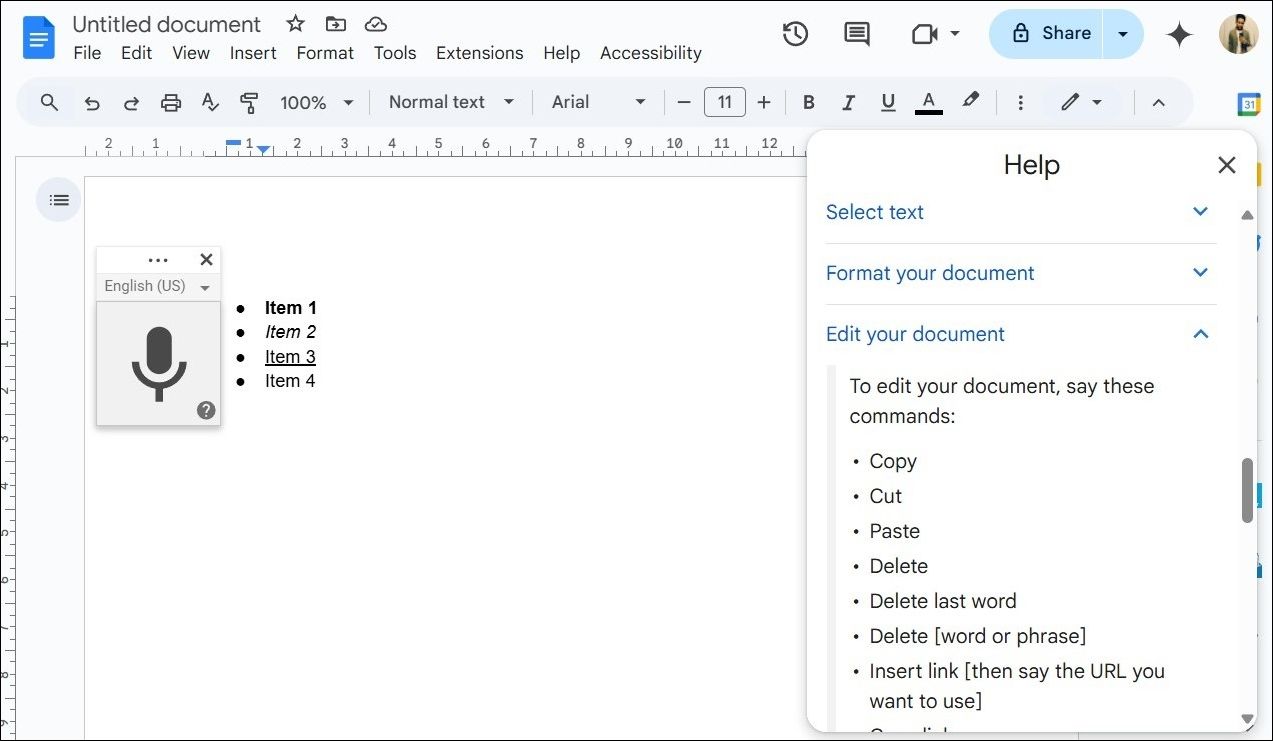 |
| An example of what the voice to text feature looks like in practice, with commands on the side. |
What really makes this feature stand out, is that is built into the software. Anyone can log on and begin using this feature with no additional set up, other than allow the program to access your devices microphone. This universal design puts all users as a priority, as opposed to just those without a disability or accessibility need.
Examples:
- A ESL students practices their english pronunciation by reading sentences and having Google Docs type it out.
- A neurodivergent person can write a paper or presentation in a way that is similar to how their brain functions, through stream of consciousness writing.
- This allows those with ADD/ADHD to write down the thoughts and ideas down while they are in their mind, as opposed to waiting and running the risk of forgetting it.
- People who are visually impaired can write much easier, while those who are completely blind can also write and can even navigate the screen better with a screen reader.
Resources:


Thanks for sharing, Adam. The fact that this is already built into software and does not have an additional cost for use makes it accessible for everyone. Integrating this tool into classroom would be simple and easy and beneficial for many different types of learners. As a Pre-K teacher, I think that it could be so beneficial for all of my students, particularly in the pre-writing stage! My students are great at telling stories but often do not yet have the ability to write them down. I think I can put this tool to great use in my Pre-K Classroom. In fact, I think any teacher could put this tool to great use in their classrooms!
ReplyDeleteThis is a good breakdown of the accessibility potential within Google's voice-to-text feature! Your point about the power of this tool being built directly into the software is important. I agree that this a good example of universal design and that its value lies in being a standard feature for everyone, rather than a specialized add-on that requires extra steps or creates a stigma. The specific examples you provided were effective in illustrating how a single feature can support a wide range of users, from ESL students to neurodivergent individuals and those with visual impairments. This really helps demonstrate the broad impact of inclusive design. Your post is a good argument for why more platforms should consider accessibility from the start!
ReplyDeleteHi Adam,
ReplyDeleteI am an avid user of Google Suite applications, and I didn’t know this was a feature. I can see this tool supporting a wide variety of students in both the classroom and library setting. I also explored a tool that is part of built in software and think it’s great that programs are embedding more accessibility features within their software. In the school and library setting when applications already have built in accessibility features it promotes useability for all students. I also think it’s a big bonus that students don’t have to learn a whole new software and can use features within software they are already familiar with and tailor it to meet their individual learning needs.